
Skip to content

PaneLive Companion

One studio connection. More ways to work.

PaneLive and PaneLive Companion are designed to work together. Pair your phone or tablet, give it the right access for its job, and bring monitoring, control, tally cues and, with Pro, prompting into one studio workflow.

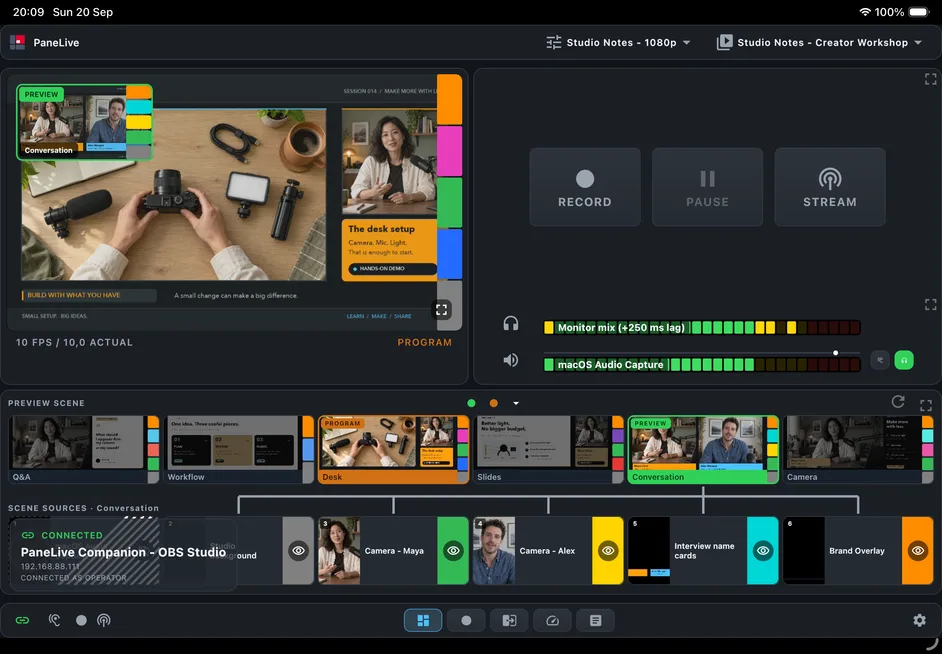
PaneLive connection status view on a tablet showing a paired PaneLive Companion connection with its production software and access role.
PaneLive · PaneLive Companion connection

Why we recommend it

Pair the device, not a shared production password

Scan a fresh pairing QR from PaneLive Companion to connect a device. PaneLive verifies the Companion’s identity and then uses its own device credential over pinned, encrypted control transport. You organize devices around the production instead of typing your production software’s password into each one.

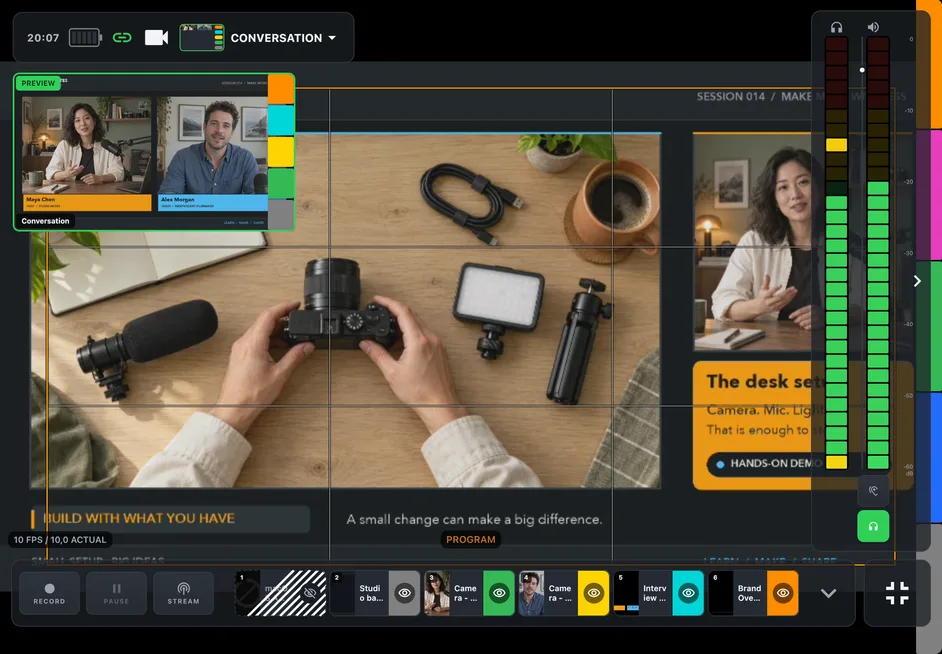
PaneLive on a tablet showing OBS Studio video fullscreen, delivered through PaneLive Companion.
PaneLive · OBS Studio via PaneLive Companion

Bring video and sound to PaneLive Pro

With OBS Studio and configured vMix setups, PaneLive Companion delivers Program and Preview video over WebRTC. When your setup supplies a monitor mix, PaneLive Pro plays it on the device, with its own gain control and a headphone-only option.

That makes PaneLive Companion especially useful when one screen needs both the production picture and the controls around it. Video and monitor sound come from OBS Studio and vMix; Streamlabs Desktop connections focus on control.

Where available, auditioning a Preview source has its own approval step on the PaneLive Companion computer. That keeps a deliberate production-side change separate from simply turning up the volume on your device.

Built for more than one device

Build a network of PaneLive screens around your crew. Each device can show a different view of the same production, so everyone stays focused on their part of the show.

Distribute the work across screens

Use the Dashboard for the overview, the Hotkey deck for shortcuts and the Composition deck for switching, the Recording deck for outputs and solo views for focused scene or audio work. Mount several devices at one desk or spread them across crew positions.

Give viewers a view and operators control

You decide whether each device gets Viewer or Operator access. Name devices after their studio positions, and use Identify to find the right screen by its temporary code.

Share the cue across the room

Start a transition or output countdown in PaneLive Pro, and the other devices on the same PaneLive Companion can show it too. The device that started it runs the action; the others display the cue.

Coordinate production commands

PaneLive Companion puts critical commands in order and reports how each one turned out. If an action is unavailable or fails, PaneLive tells you, so you always know whether a tap went through.

Master Player · video monitor
Controller · playback and layout
Master Player · script view

Put scripts where they are needed

Use scripts assigned through PaneLive Companion, read them privately, or run a shared teleprompter session: a Controller operates the session, the Master Player drives the scrolling and Monitors follow along. Master Player and auxiliary player (Monitor) modes are included in free PaneLive; Controller mode requires Pro. PaneLive can also pair with the standalone PaneLive Companion Teleprompter when you don’t need production software at all. You’ll need a teleprompter rig sized to fit the tablet acting as the Master Player for PaneLive Teleprompter.

Connection methods

What changes for each program?

Choose the connection that suits your studio. See how PaneLive Companion brings pairing, monitoring and shared tools to your PaneLive Pro workflow.

What a direct connection offers, and what PaneLive Companion adds, for each production program.
Property Direct connection What PaneLive Companion adds
OBS StudioWebSocket control, screenshot monitoring, meters, shortcuts and OBS options.WebRTC video, producer monitor audio, input monitoring, paired access, consistent quick transitions, shared cues and prompting.
vMixHTTP control, SRT video and OMT Headphones audio (each set up separately), shortcuts and Telestrator.Pairing and roles, WebRTC video and audio, source thumbnails and details, shared cues, prompting and coordinated critical actions.
Streamlabs DesktopScene, source, mixer and output control, plus PaneLive’s canvas, collection and configured-action workflow.A protected paired connection, per-device roles and the shared tools. For video, thumbnails, meters and audio, use OBS Studio or vMix.

Some routes work without PaneLive Companion too: a direct vMix connection carries monitor audio through OMT, and a direct Streamlabs Desktop connection runs your configured actions.

When a direct connection is a good fit

Use a direct connection when you want your production software’s own controls without running another program on the production computer. OBS Direct suits simple screenshot monitoring and control. vMix Direct works well once you have set up its HTTP, SRT and optional OMT paths. Streamlabs Direct gives you a focused control surface.

For a crew working with several devices, roles, shared cues and prompting, we recommend PaneLive with PaneLive Companion.

Good to know before you start

PaneLive Companion runs as an extra program on your production computer, and your production software and media settings still shape what you get: Companion makes the most of what each program offers. Viewers can watch, while production controls need Operator access. Teleprompter roles (Controller, Master Player, Monitor) are assigned separately from production access.

Getting started

Five steps to a paired studio

  1. 01

    Run PaneLive Companion

    Download PaneLive Companion from GitHub Releases for Windows, Linux or macOS. Connect it to your production software, or choose the standalone Teleprompter.

  2. 02

    Join a reachable network

    Make sure your phone or tablet can reach the PaneLive Companion computer over the network.

  3. 03

    Pair by QR code

    In PaneLive, add the PaneLive Companion connection and scan a fresh pairing QR.

  4. 04

    Check the connection and role

    Confirm which production software is connected and the device’s current role. Request Operator access only for devices that need production control.

  5. 05

    Open the right view

    Set up any media or script assignments on the production side, then open the matching PaneLive view.

PaneLive Companion manuals

  • Installation manual: installer packages, desktop launchers, Windows, macOS and Linux setup, pairing and troubleshooting for PaneLive Companion 0.1.0-beta.1.
  • Operation manual: session preparation, devices, monitoring and shared tools. Still in preparation.
  • Advanced setup and testing: evaluation builds, manual integrations and isolated command-line test launches for advanced users.

Bring your studio together

Try PaneLive Pro with your production

For a one-off event, subscribe to PaneLive Pro monthly and cancel when you’re done. Or try the yearly subscription free for 7 days.