 PaneLive
Guide
Private and shared teleprompter
Prompt from one device or share a script across several. Master Player and auxiliary player (Monitor) modes are included in free PaneLive; Controller mode requires Pro. The teleprompter runs through PaneLive Companion, alongside your production or as a standalone teleprompter connection. You’ll need a teleprompter rig sized to fit the tablet acting as the Master Player for PaneLive Teleprompter.
For a one-off event, subscribe to PaneLive Pro monthly and cancel when you’re done. Or try the yearly subscription free for 7 days.
Choose the setup
| Property | Use it when | What must be ready |
|---|---|---|
| Private playback (“This device only”) | One presenter reads and controls on one device | A PaneLive Companion profile and a script assigned to this device |
| Shared with players | Presenter, controller and monitors are on separate devices | A shared session in PaneLive Companion, with roles and a script assigned |
| Standalone PaneLive Companion Teleprompter | Prompting is the only job | PaneLive Companion in standalone teleprompter mode, no production software needed |
You write, organize and assign scripts in PaneLive Companion. PaneLive then shows the script assigned to your device, ready to read.
Step 1
Connect and get a script
Alongside a production, pair PaneLive with PaneLive Companion for your production software and open Teleprompter. For standalone use, add the teleprompter connection through PaneLive Companion and scan its QR.
To install Companion first, follow the Installation manual. Its platform instructions cover standalone use without OBS; continue with pairing and script and session setup before returning here.
Ask the PaneLive Companion operator to assign a script to your device, or to add the device to a shared session. In Teleprompter settings, check Playback, your role and Script. Change… appears when you can switch between private and shared playback, and you can pick a script when more than one is assigned and your role allows it.
Step 2
Understand the roles
| Property | Responsibility |
|---|---|
| Controller | Runs playback, picks the script and sets the shared layout. Requires PaneLive Pro. |
| Master Player | Sets the scroll for everyone and listens for voice follow. Included in Free. |
| Auxiliary player (Monitor) | Shows the shared script in step with the Master Player. Included in Free. |
| Private player | Reads and controls the script on a single device. |
You assign the Master Player and Controller in PaneLive Companion, and they can be different devices. Prompting roles are set separately from Viewer and Operator access.
Step 3
Prepare the reading view
Open the prompting settings and choose:
- Words per minute for the base pace and Speed trim for fine adjustment.
- Font and Font size for readability.
- Line spacing, Content width and Top start margin for a shared session, or left and right margins for private playback.
- Mirror controls to match your prompter hardware.
- This device only options, such as a local horizontal mirror and orientation lock.
Shared layout settings keep every screen in the session on the same layout, while local options change only this device. Check the font size on the real screen, because readability depends on the mounting distance as well as the tablet size.
When the text is mirrored, the Controller bar’s page buttons still move backward and forward through the script as usual. Choose between the bundled typefaces Noto Sans Medium and Roboto Medium.
Control your own take
Thumb Remote
For presenters and solo creators controlling their own script.
Thumb Remote is a compact teleprompter controller you can use with a phone in your hand, without looking down at it. Set your own pace during a take and record without a dedicated teleprompter operator.
Keep the tablet acting as Master Player in a teleprompter rig sized to fit it. Hold the phone comfortably with your thumb on the remote, so your eyes can stay on the reading display or camera.
To open Thumb Remote, tap the remote button at the top of the Controller’s right-hand control panel. Move your thumb up to slow down or down to speed up. Swipe left and release to move back one screen, or swipe right and release to move forward one screen. In a shared session, a screen means the Master Player’s screen.
Step 5
Follow your voice
- 01
Enable Follow my voice
On the Controller or private player, turn on Follow my voice.
- 02
Check speech and permissions
Voice follow works with English and on-device speech recognition. Grant microphone and speech permissions on the Master Player.
- 03
Wait for readiness
Wait until the status shows it is ready, then start reading the script. Only the Master Player listens.
- 04
Read and let it follow
The player matches your reading pace and highlights what it has heard. If it loses your place, it holds or recenters until it finds you again.
- 05
Use the retry guidance
If listening stops, follow the retry guidance on screen. On first use, give the speech setup a moment to get ready.
Voice follow moves the script with your reading. To control your production by voice, use PaneLive Voice Cues, which have their own calibration and commands.
Step 7
Run a shared session
- 01
Confirm the assignments
Check each device’s shared session, script and role.
- 02
Set layout and speed
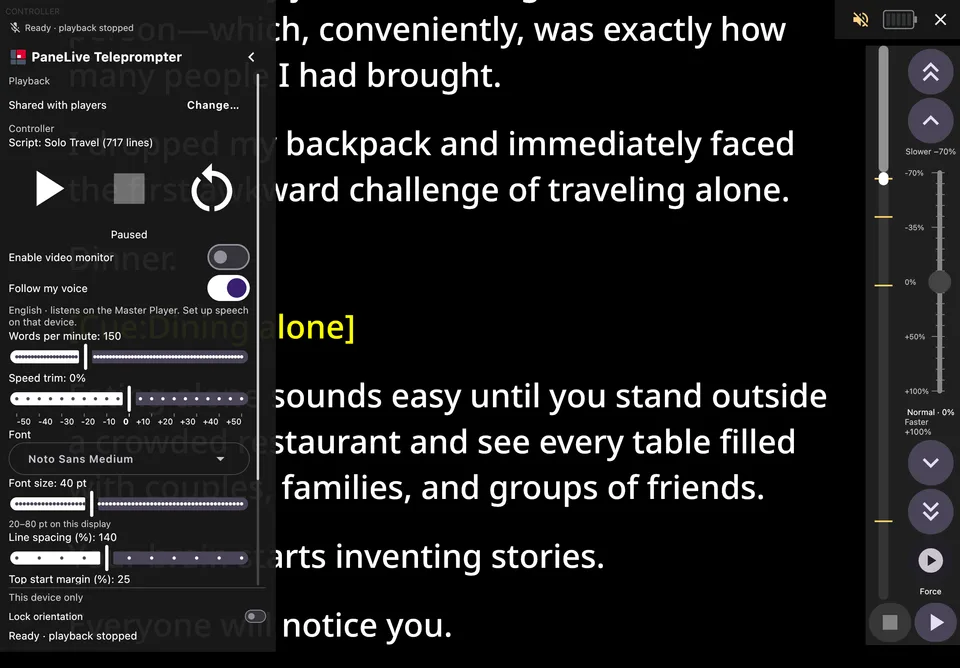
From the Controller, set a readable shared layout and the base speed.
- 03
Check the Master’s microphone
If you use voice follow, check that the microphone is ready on the Master Player.
- 04
Start from the Controller
Start playback from the Controller, then check the Master Player and at least one Monitor.
Controller · playback and layout - 05
Steer as required
Use the page, timeline or speed controls as needed. Monitors keep their own local options.
- 06
Finish cleanly
At the end, pause and check that every screen has stopped. Close prompting to return to your production views.
Troubleshooting
Quick troubleshooting
| Property | Action |
|---|---|
| No Teleprompter entry | Use a PaneLive Companion connection. Master Player and auxiliary player (Monitor) modes are included in Free; Controller mode requires Pro. |
| No script | Ask the PaneLive Companion operator to assign it to this device or session. |
| Cannot change a script | Check your role and that more than one script is assigned. |
| Shared settings unavailable | Check that this device is the Controller and is connected. |
| Voice status unavailable | Check microphone permission and speech setup on the Master Player. |
| Motion held | Check voice status, a manual pause or a timed pause. Force continue skips the voice hold. |
| Connection delayed | Follow the status on screen and reconnect to the existing session. |
| Text does not fit the mount | Adjust font, layout and mirroring on the Controller or private player. |
| Usual monitor sound/video absent | Prompting takes over the screen. Close it to bring monitoring back. |
Bring your next script to life with PaneLive Pro
For a one-off event, subscribe to PaneLive Pro monthly and cancel when you’re done. Or try the yearly subscription free for 7 days.